
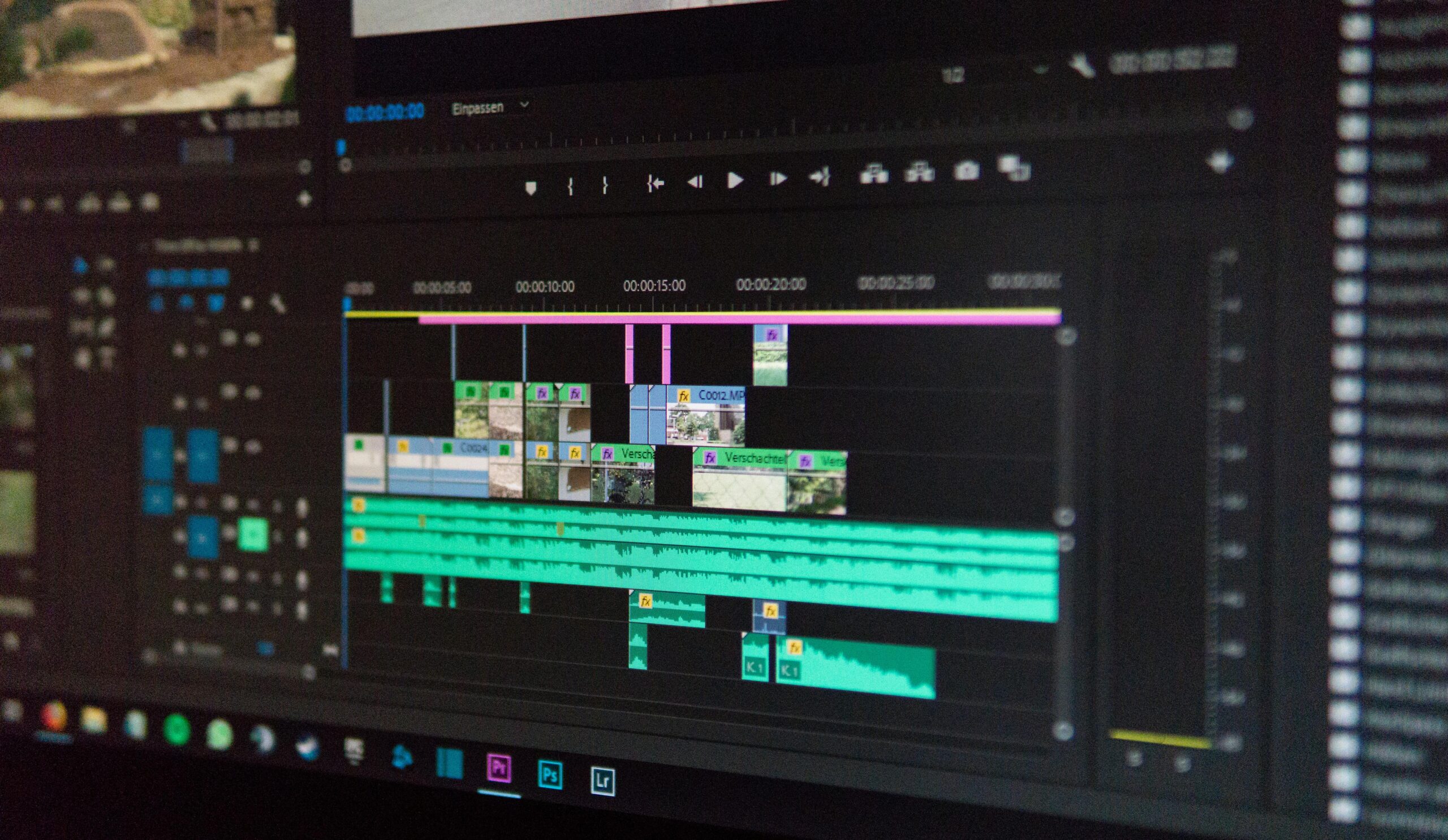
Crank Out Killer Content with the Right Tools
Alright, let’s get real—if you’re making stuff for YouTube, teaching people online, or just want to show off your gaming kills, screen recording is your bread and butter. Everyone and their grandma is making videos now, so picking the right screen recorder? Kinda a big deal.
Because there’s a sea of options, it’s easy to drown in endless comparison charts. However, you don’t need to waste hours digging around. Lucky for you, here’s a no-BS lineup of the best screen recorders for 2025—whether you’re broke, loaded, or just want something that…works.
🏆 1. OBS Studio (Open Broadcaster Software)
Who’s it for? Hardcore creators and streamers | Cost: Free. Zero. Nada.
OBS is the OG for serious creators. Since it’s open-source, a bunch of developers constantly make it better (for free). Moreover, you can stream or record in crisp quality with no limits. The best part? You can customize the living daylights out of it—think fancy overlays, scene switches, and plugins for days. It works across Windows, Mac, and Linux.
Stuff to love:
- Build scenes however you want
- Mix audio and video live
- Plugin city
- No dumb watermarks or limits
The catch? It’s not exactly “plug and play.” The learning curve’s brutal if you’re new. And editing? Forget it—none built in.
TL;DR: If you’re a gamer, tech nerd, or just want max control, this is your playground.
🎬 2. Camtasia
Who’s it for? Folks who want to record and edit in one place | Cost: Paid (one-time or subscription)
Camtasia is like the well-dressed, buttoned-up cousin of screen recorders. Teachers and pros especially love it. You can record, edit, add effects, drop in quizzes (yep), and then push straight to YouTube. In addition, the drag-and-drop interface makes it surprisingly simple to use.
Highlights:
- Record screen + webcam together
- Drag-and-drop editing (so easy your cat could do it)
- Fancy effects, transitions, callouts
- Toss in quizzes for online courses
Downsides? Your bank account might cry a little. Also, it likes a decent computer—don’t try this on your grandma’s old laptop.
TL;DR: If you’re teaching, training, or want to look pro without juggling a bunch of apps, Camtasia is your buddy.
⚡ 3. ScreenRec
Who’s it for? People who want speed and simplicity | Cost: Free (upgrade if you want)
ScreenRec is the “I just need to record this NOW” tool. One click, boom, you’re recording. Perfect for quick tutorials, demos, or showing your boss how to unmute on Zoom.
Goodies:
- Ridiculously fast to start
- Webcam and mic? Yep
- Instant shareable links
- 2GB free cloud storage
But… You won’t be editing Spielberg-level videos here. Also, you’ll need to sign up to unlock everything.
TL;DR: Great for newbies, marketers, or anyone who wants to skip the tech headaches.
🎮 4. Bandicam
Who’s it for? Gamers and anyone recording high-speed stuff | Cost: Free (with watermark) or Paid
If you’re into games, Bandicam is basically made for you. It records at high frame rates without turning your PC into a space heater. On top of that, the files come out small but still look sharp.
Cool bits:
- Record games, screens, or even devices
- 4K video support (if you’re fancy)
- Webcam overlay and doodle tools
- Schedule recordings
Not so cool: Free version slaps a watermark on your video. And editing? Almost nonexistent.
TL;DR: If you’re making gaming vids or walkthroughs, Bandicam’s a solid bet.
📹 5. Loom
Who’s it for? Educators, coaches, and productivity nerds | Cost: Free or Paid Pro
Loom is everywhere these days. It’s ridiculously easy—just hit record, and you’ve got your screen and webcam in a shareable video in seconds. Furthermore, it works in browsers or as an app, so you can use it anywhere.
Why people dig it:
- Record both your screen and your face
- Share instantly from the cloud
- Analytics to see who’s watching (kind of creepy, kind of cool)
- Team-friendly features
Downsides? The free version cuts you off after a while. Also, don’t expect to do fancy edits.
TL;DR: If you’re always explaining stuff or doing walkthroughs, Loom is your go-to.
🧩 6. Movavi Screen Recorder
Who’s it for? Beginners who want easy but not too basic | Cost: Free / Paid
Movavi’s like the Goldilocks of screen recorders—not too basic, not too overwhelming. The interface is beginner-friendly, yet it supports HD/4K and even has light editing tools if you grab the Studio version.
Perks:
- Schedule recordings (set it and forget it)
- Record audio separately
- Annotate and screenshot as you go
- Exports in a bunch of formats
Cons? Free version loves watermarks. Moreover, you’ll need the paid plan for advanced features.
TL;DR: If you’re new or just want to keep things simple and clean, Movavi fits the bill.
Final Word: Pick What Fits Your Flow
So there you go. Whether you’re making Let’s Plays, tutorials, or just trying to look less like a potato on Zoom, there’s something here for every flavor of creator. And remember—don’t overthink it. Pick the one that matches your budget, your workflow, and your patience level.
Now get out there and hit record. 🎥
📊 Quick Comparison Table
| Tool | Best For | Price |
|---|---|---|
| OBS Studio | Pro-level recording & streaming | Free |
| Camtasia | All-in-one editing & recording | Paid |
| ScreenRec | Lightweight, fast recording | Free |
| Bandicam | High-performance game capture | Free/Paid |
| Loom | Webcam + screen tutorials | Free/Paid |
| Movavi | Beginner-friendly functionality | Free/Paid |
Alright, here’s the deal:
Doesn’t matter if you’re just posting goofy cat videos for your friends or grinding out YouTube content like it’s your side hustle—picking the right screen recorder is kinda crucial. Seriously, why suffer with clunky tools or blurry footage? That’s just pain.
So, quick cheat sheet:
- Got control issues? OBS Studio’s your jam. Total boss-level settings, plus streaming.
- Obsessed with editing? Camtasia’s basically Photoshop for your videos.
- Hate fiddling with stuff? ScreenRec or Loom. Click, record, done.
- Hardcore gamer? Bandicam’ll make your gameplay look crispy.
- Can’t even with complicated setups? Movavi is stupidly easy.
Honestly, get this right from the start and you’ll dodge headaches later. Cleaner vids, less rage, and hey, maybe that subscriber count won’t look so sad.






Leave a Reply